Comprehensive Printer Problems & Solutions
Our certified technicians are trained to handle a wide variety of printer issues. Below are some of the most frequent problems we encounter along with practical solutions drawn from industry recommendations:
- Paper jams: Jams typically happen when paper is loaded incorrectly or the wrong paper size is used. Remove the jammed sheet, reload the correct size and wipe away paper dust that builds up around the feed tires. Using high‑quality paper reduces dust and helps prevent recurring jams.
- Lines, streaks or spots: Streaks and spots usually indicate a foreign substance on the scanner glass, a malfunctioning drum or fuser, or even debris on the mirror. Clean the glass and mirrors according to the manufacturer’s instructions; if the problem persists a technician may need to inspect and replace the drum or fuser.
- Wrinkled pages: Worn feed or exit rollers, humidity, damaged paper trays and fuser issues can all cause wrinkled prints. Replace worn trays, upgrade to better paper that resists humidity and consult a technician if the fuser assembly or exit rollers appear to be the culprit.
- Faint or dark prints: An imbalance in the copier’s density controls or low ink/toner levels can lead to pages that are too light or too dark. Make sure your ink or toner isn’t low and reset the density levels. Old drums or aftermarket supplies can also cause density issues, so replacing them may be necessary.
- Weird or misaligned text: If characters look misaligned, check that your ink or toner levels are adequate and you’re using the correct paper and settings. Align the print head and ensure the cartridges or drum units are functioning properly.
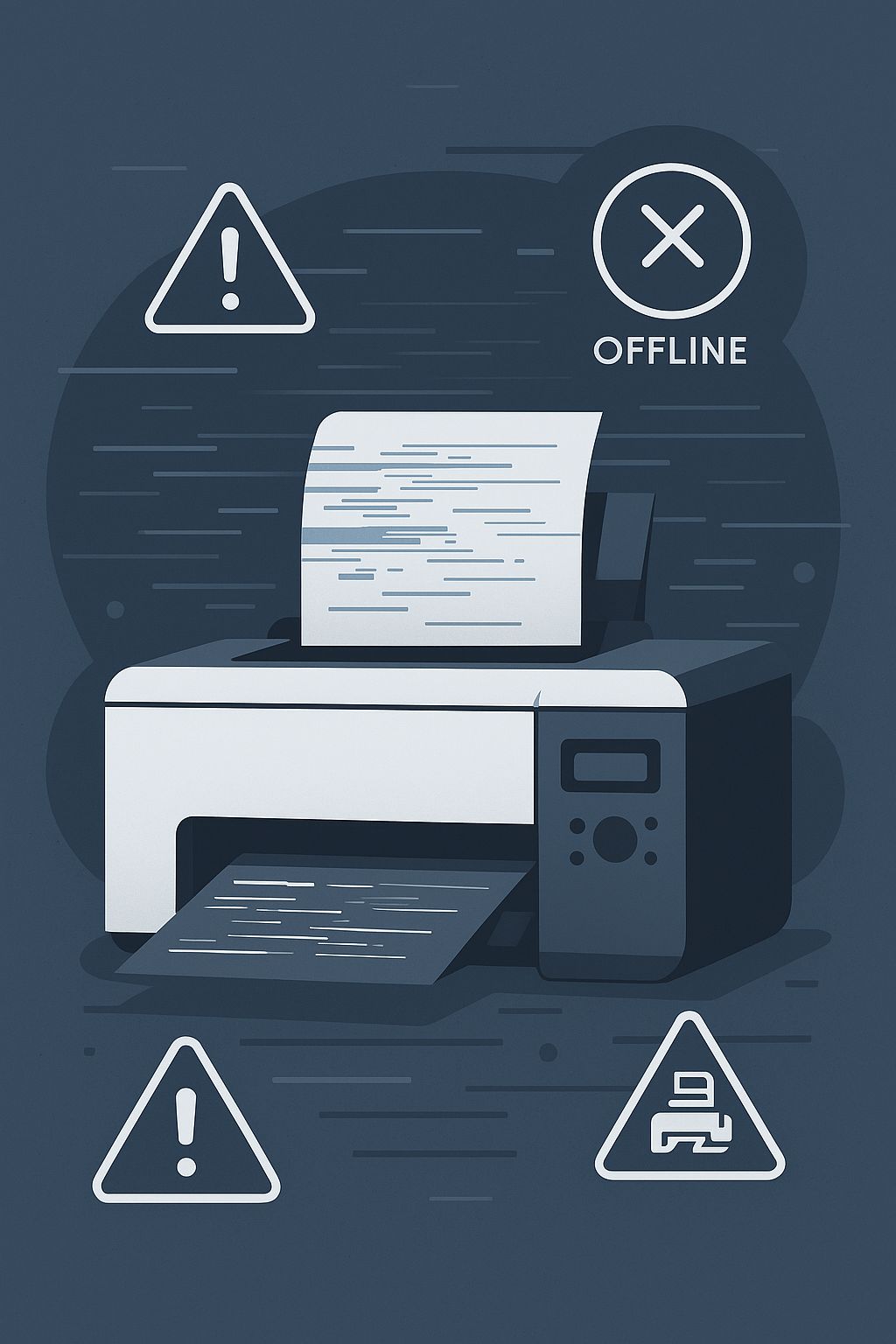
- Printer offline errors: A printer may appear offline due to disconnected cables, malfunctioning routers or incorrect settings. Confirm that power and network cables are secure, verify your router is working and update the printer drivers. Adjusting security settings can also help your computer communicate with the printer again.
- Stuck print queue: Print queues can stall when multiple jobs arrive at once. Clear unnecessary jobs from the queue and reboot your printer or computer; if the queue still won’t move, consult your printer’s manual or our support team.
- Failure to print or scan: Multi‑function devices may stop printing or scanning when a driver becomes misconfigured or outdated. Restart the device, then install the latest drivers to restore full functionality.

Tips to Prevent Printer Problems
While we’re always here to help, a few simple maintenance practices can keep your printer running smoothly and minimize downtime:
- Schedule regular maintenance and professional cleanings to remove dust and debris from internal components.
- Never force paper into the machine and avoid overfilling trays; use gentle, correct loading techniques to prevent jams.
- Replace rollers, fusers and other consumables according to the manufacturer’s recommended timeline so worn parts don’t cause malfunctions.
- Use high‑quality paper and original (OEM) ink or toner cartridges to reduce wear and avoid print‑quality issues.
Whether you’re dealing with a minor annoyance or a major breakdown, our team can provide remote troubleshooting or schedule an on‑site visit. Reach out to us anytime at +1‑844‑236‑8333 or email info@onlinddesk.com.